Search

Dark theme | Light theme
Showing posts with label GroovyGoodness:IDE. Show all posts

October 27, 2017

Groovy Goodness: Download Grab Dependencies In IntelliJ IDEA

In our Groovy scripts we can use the @Grab annotation. With this annotation we define dependencies for our script and they will be automatically downloaded and added to the class path when we run our script. When we use IntelliJ IDEA we can use a nice intention that is part of the IntelliJ IDEA Groovy support to download the dependencies from our IDE editor. IDEA downloads the dependencies and add it to the project module dependencies. This is useful, because this will also adds code completion for the classes in the dependency to our editor.

Let's see this with a little example. We have the following Groovy script in our Groovy project in IntelliJ IDEA:

We place the cursor on the @Grab annotation and enable the intention popup using Alt+Enter (check Keymap Reference for the key combination). We select the option from the popup:

IntelliJ IDEA downloads the dependency. When we look at our Project Structure and at the Module Dependencies we see the downloaded dependency:

In our example we added the Groovy script to a Groovy project in IntelliJ IDEA. When the project is a Gradle or Maven project we must make sure Ivy is part of the compile class path, because otherwise IntelliJ IDEA cannot download the dependencies using this intention. For example we could add to a Gradle build file the following dependency compileOnly 'org.apache.ivy:ivy:2.4.0'.

Written with Groovy 2.4.12 and IntelliJ IDEA 2017.2.5

June 17, 2016

Groovy Goodness: IntelliJ IDEA Formatting Of Closure Chains

When we write code with a lot of method chaining that involves closures and the use the Reformat code feature of IntelliJ IDEA things might get screwed up. Luckily we can changes some Groovy formatting rules in IntelliJ IDEA to prevent the reformatting.

In the following screenshot we see the original piece of code in the IntelliJ IDEA editor:

When we invoke Reformat code command we can have the following result where the code his not aligned anymore:

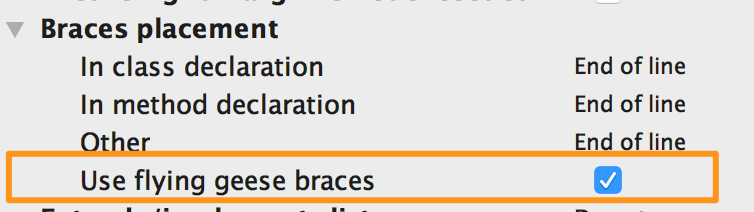
Let's set two options in the Preferences to keep the code formatted as is. We need to go to Editor | Code Style | Groovy. In the section Braces placement we enable the option Use flying geese braces:

In the section Chained method calls we enable the option Align when multiline:

Now when we reformat our original piece of code that alignment stays:

Written with IntelliJ IDEA 2016.1.

September 21, 2015

Groovy Goodness: Turn Method Parameters Into Named Map Arguments With IntelliJ IDEA

A very useful feature in Groovy is the use of named arguments. Instead of a list of arguments for a method or constructor we can use a Map argument. If the argument is the first in the list of arguments then Groovy allows use to use named arguments when we invoke the method or constructor. This means all key/value arguments are gathered together and assigned to the Map argument. Inside our method or constructor we can then access the Map argument and get the values for the keys. This leads to better readable code and that is very useful. IntelliJ IDEA has a Groovy intention to turn method parameters into a Map parameter for named arguments with a few mouse clicks.

Suppose we have the following source code with a simple method definition, 2 arguments, and the invocation of the method:

Now we activate the Groovy intentions (for me it is Alt+Enter or try Shift+Shift and type Show intentions actions) while we place the cursor on the parameter greeting. We select the option Convert parameter to map entry:

IntelliJ IDEA opens a new dialog. Here we can choose to create a new Map parameter for named arguments. If our method would have a Map argument already we can re-use it. We can let IDEA add the Map type or leave it out. Finally we can change the name of the parameter. In our example we have changed it to conf:

When we click the OK button we see our source code has changed. Not only the method signature of the simple method, but also the invocation has changed:

We can re-apply the same intention for the username parameter and we get the following code:

Written with IntelliJ IDEA CE 14.1.4.

Groovy Goodness: Turn Map Into Class With IntelliJ IDEA

IntelliJ IDEA has very good Groovy support. It also provides some intentions especially for the Groovy language. For example we can turn a map definition into a Groovy class definition with a few simple clicks.

The following screenshot shows a simple map declaration with two keys: username and alias. If we use the shortcut for intentions (Alt+Enter on my computer) we can choose the Convert to Class option:

IDEA opens a new dialog window where we can type the name of the class we want to generate and a package name:

When we click the OK button IDEA generates a new Groovy class file in our project:

Also our original source where we declared the map is changed. Now the constructor of the new class is declared and the original values from the map are assigned to the correct properties of the class:

Written with IntelliJ IDEA CE 14.1.4.

September 16, 2015

Groovy Goodness: IntelliJ IDEA Intentions For String Values

The best IDE to use when developing Groovy code is IntelliJ IDEA. The Groovy plugin has some nice intentions for us that we can use to optimise and refactor our code. We will look at some of the intentions that deal with String values in this blog post. The intentions shown here work in the free Community Edition as well in the paid Ultimate Edition. To see the possible intentions in IDEA we must select the Show Intentions Action. We need to check our shortcut keys to see the assigned shortcut. On my Mac it is for example Alt+Enter. Alternatively we can press the Shift key twice and type in Show intentions. IDEA will show the action with the shortcut key for us.

Suppose we have assigned a String value to a variable in our code. We used the double quoted syntax to do so, like in Java. But we want to change it to a single quoted String value, so to make it explicit the value cannot be a GString implementation. In the following screenshot we see our variable s with a value. We use our shortcut key to open the suggested intentions. We type convert to shorten the list with only conversion options. We see that we can change our String value to dollar slashy, regular expression, multiline or plain String syntax:

When we select Convert to String IntelliJ IDEA changed our value assignment:

We can also apply the conversion the other way around:

Another useful intention, especially when we copy-past some Java code in our Groovy source files, is to convert a String concatenation with the + operator to a GString value. We can select one of the elements of the concatenation and open the Show Intentions Action. Now we see the option Convert to GString:

When we select the option IDEA will turn the statement into a GString with the variable value replaced as an expression:

Also when we already have a GString value in our code we can remove unnecessary braces. In Groovy we can leave out the curly braces for dotted expression or the expression is a single value. We select the option Remove unnecessary braces in GString from the intentions to make this work:

The result is that the braces are removed:

Finally we take a look at the intention to turn a String value with end of line characters in it to a multiline String value:

If we have selected the option Convert to Multiline IDEA turns our original String value to a multiline String value:

Written with Groovy 2.4.4 and IntelliJ IDEA CE 14.1.4